Put ISOs in a folder. Boot them over the network.
vPXE is one Linux binary that serves your ISO images to machines that boot from the network, next to the DHCP server you already have. Nothing to extract, nothing to set up per machine.
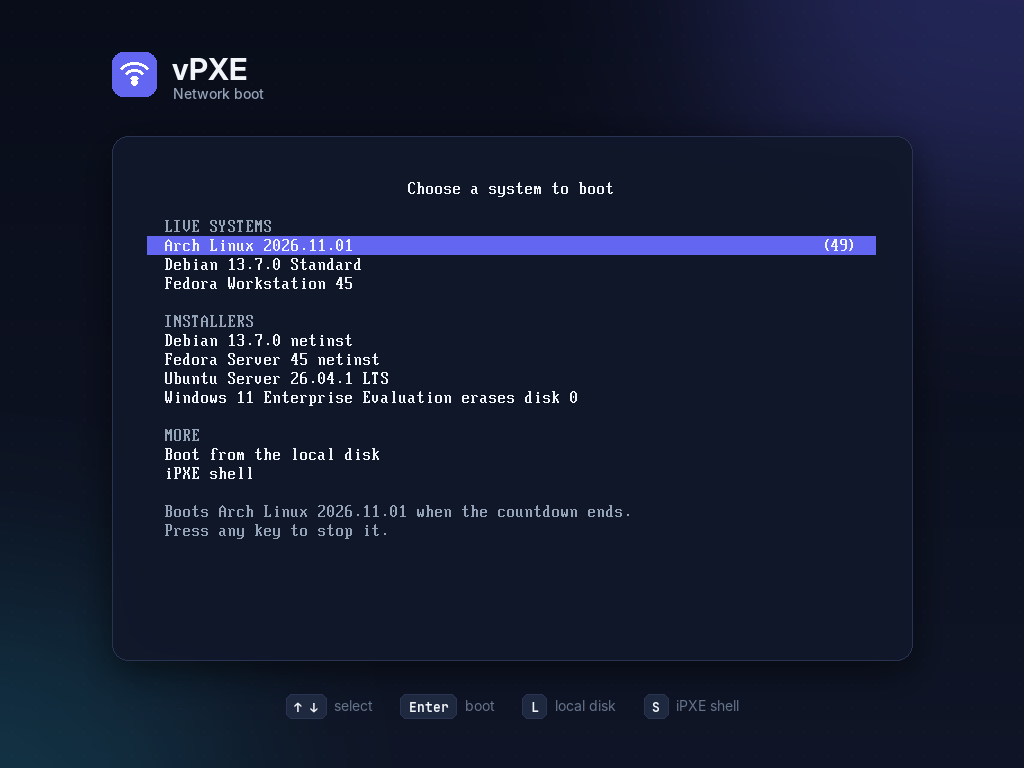
How a machine finds the menu
You copy ISO images to /srv/iso and start vpxe on a Linux server of the network. When a machine boots from the network, three exchanges follow, each one on its own port.
-
proxyDHCP UDP 67, 4011
Your DHCP server keeps giving addresses. vPXE only answers machines that ask to boot from the network, and tells them where to get iPXE.
-
TFTP UDP 69
Firmware that only speaks PXE downloads iPXE first. Without a TFTP root, machines that already run iPXE, like Proxmox VMs in BIOS mode, skip this step and get the menu directly.
-
HTTP TCP 80
iPXE loads the menu, then the kernel and the files of the chosen system, read straight from the ISO image.
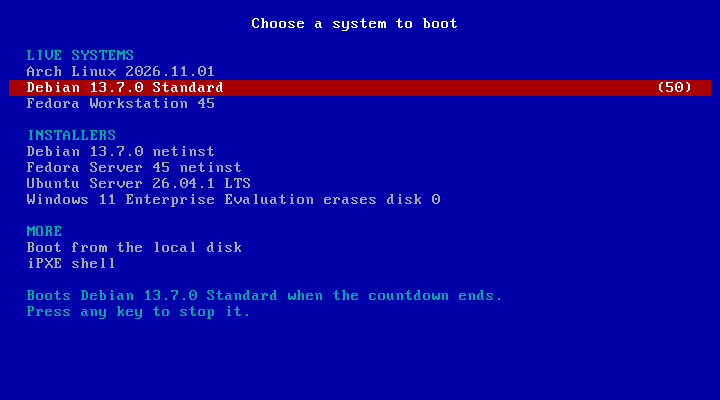
Choose per machine
Without a choice, a machine boots from its local disk when the countdown ends. Rules by MAC address can preselect a system for one machine, or boot it without showing the menu.
[[machine]]
mac = "52:54:00:12:34:56"
image = "debian-live-13.7.0-amd64-standard"
mode = "preselect"
timeout = 10
vPXE reloads these rules when vpxe.toml changes, without a restart.
What it boots
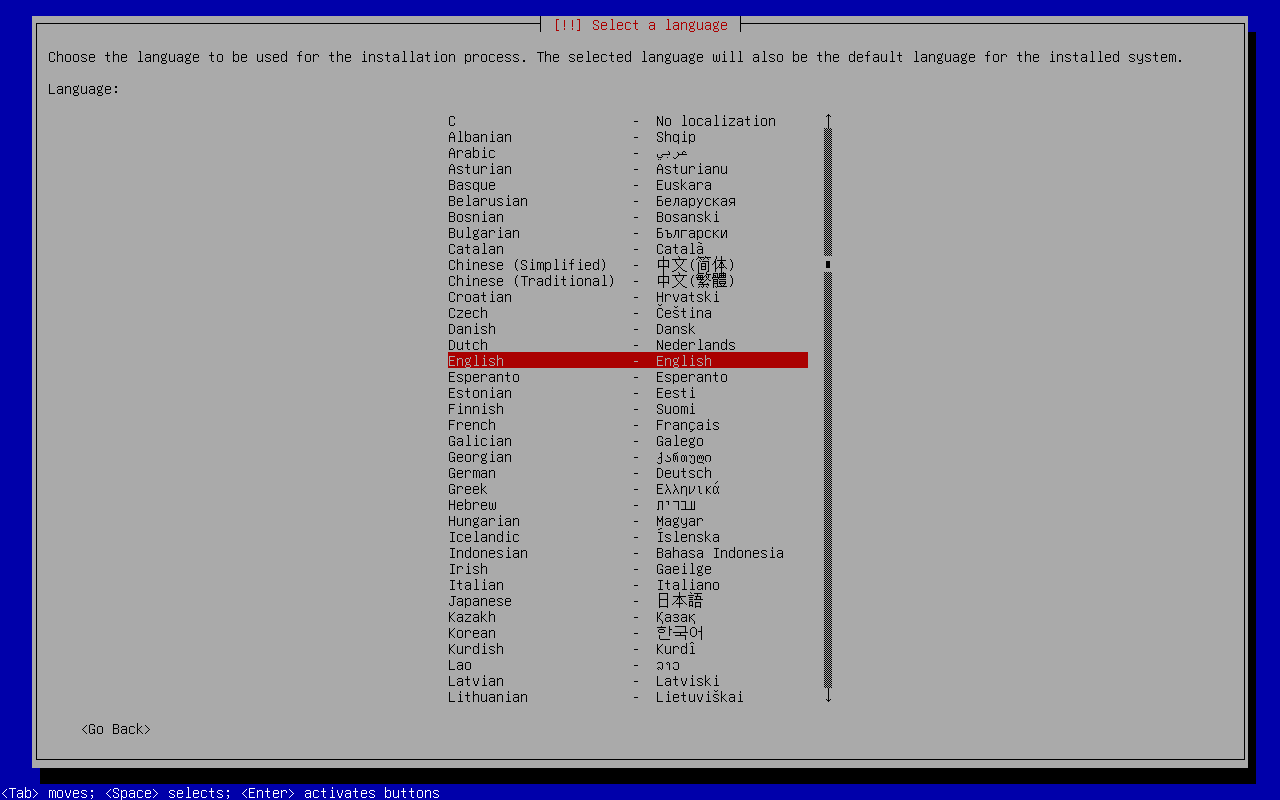
vPXE recognizes these images and boots them unmodified. Each one was tested on QEMU or Proxmox virtual machines: the live systems and the Fedora and Ubuntu installers in BIOS and UEFI mode, the Debian installer and Windows in UEFI mode.
| Image | Tested with | How it boots | With Secure Boot |
|---|---|---|---|
| Arch Linux | 2026.11.01 | Root file system over HTTP, signature checked | No signed shim in the image |
| Debian live | 13.7 standard | Root file system over HTTP | Tested |
| Debian installer | 13.7 netinst | The whole image as a second initrd, seen as its CD-ROM | Not tested |
| Fedora live | 45 Workstation | Root file system over HTTP | Tested |
| Fedora installer | 45 Server netinst | The Anaconda installer over HTTP | Tested |
| Ubuntu | 26.04 live server | The whole ISO into RAM | Tested |
| Windows | 11 Enterprise eval | WinPE, then a scripted install of install.wim | Not tested |
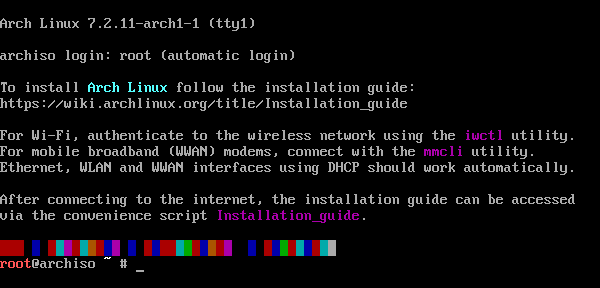
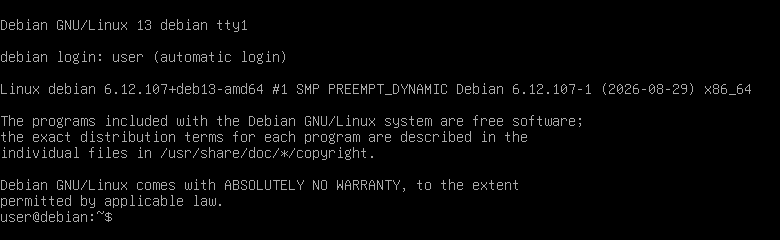
Windows, without a Windows server
vPXE starts WinPE from the installation image, downloads install.wim over HTTP and applies it with DISM. No SMB share, no WDS, no Setup wizard.
-
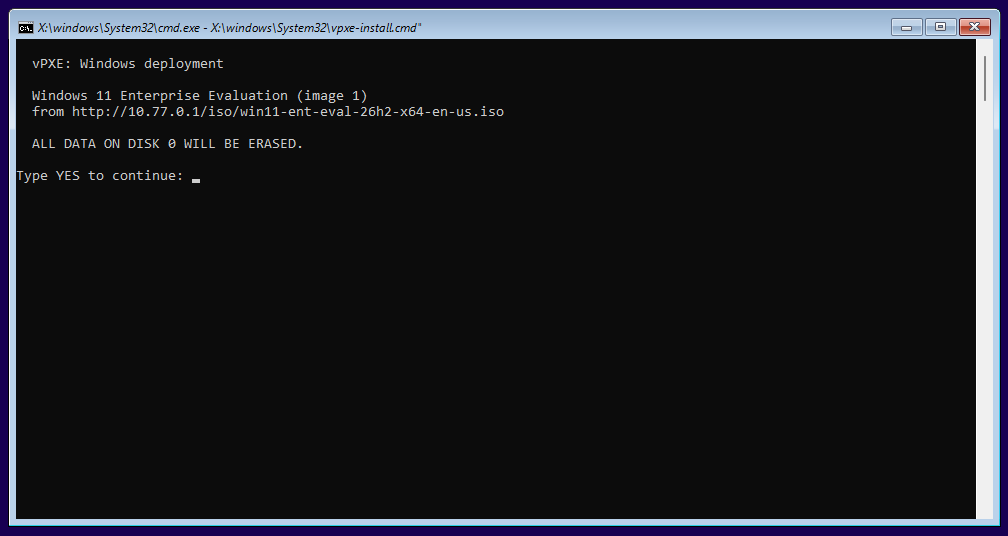
It asks first: type YES to erase disk 0. -
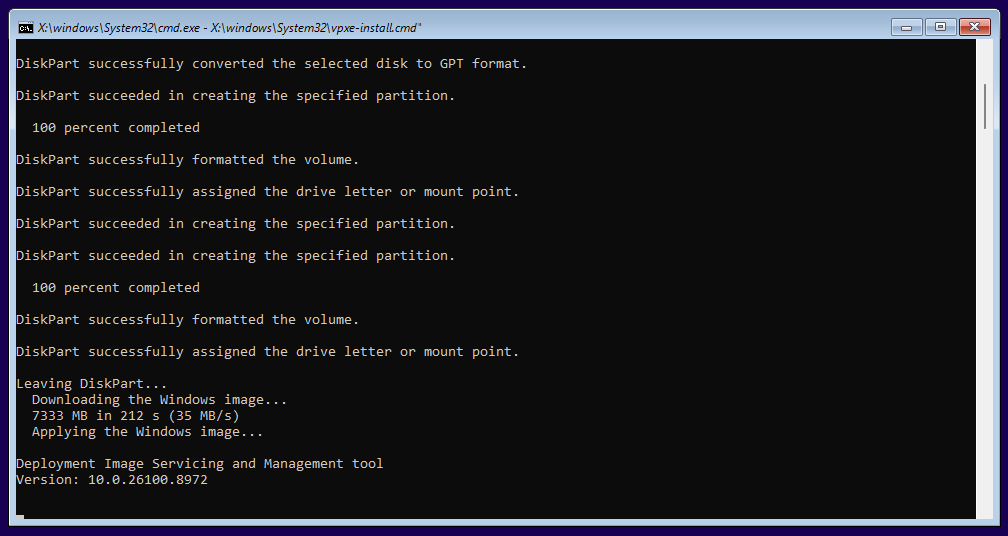
Disk 0 partitioned, 7.3 GB downloaded in 212 s, then DISM. -

Windows 11 starts from the disk, at its first screen.
Tested in UEFI mode, without Secure Boot. WinPE needs a driver for the network card and the disk: VirtIO devices need drivers added to boot.wim. Windows setup
Know what each machine needs
The server's status page lists every image, what vPXE found in it, how it handles Secure Boot and the memory a client needs. This is an excerpt, as the lab server shows it.
vPXE 0.1.1
menu: http://10.77.0.1/boot.ipxe

archlinux-2026.11.01-x86_64  [arch, bootable]  Arch Linux 2026.11.01
    kind:   Live
    image:  http://10.77.0.1/iso/archlinux-2026.11.01-x86_64.iso (1.3 GB)
    secure boot: no (no signed shim in the image)
ubuntu-26.04.1-live-server-amd64  [ubuntu, bootable]  Ubuntu Server 26.04.1 LTS
    kind:   Installer
    image:  http://10.77.0.1/iso/ubuntu-26.04.1-live-server-amd64.iso (2.9 GB)
    secure boot: yes, through /EFI/boot/bootx64.efi
    note:   the whole image is downloaded into a RAM disk capped at half
            the memory: the client needs more than twice its size
Secure Boot
With --secure-boot, UEFI clients start a shim signed by Microsoft, then an iPXE signed by its project, then each distribution's own signed shim. Arch Linux has none: choosing it with Secure Boot on shows a message instead. Secure Boot setup
Try it on one machine
You need a Linux server on the same network as the machine, root, and UDP 67, 69 and 4011 and TCP 80 open in its firewall.
git clone https://github.com/davlgd/vpxe.git
cd vpxe
curl -fL -o vpxe https://github.com/davlgd/vpxe/releases/latest/download/vpxe-linux-amd64
chmod +x vpxe
The repository holds the changes vPXE needs in iPXE. Build iPXE into /srv/tftp for UEFI machines and physical ones. Proxmox VMs with SeaBIOS, the default, and their stock network ROM boot without it: skip this step.
sudo mkdir -p /srv/iso
sudo cp debian-live-13.7.0-amd64-standard.iso /srv/iso/
sudo ./vpxe
Then boot a machine from the network: the menu lists your image. The status page, at http://<server address>/, shows what vPXE found in each image and the memory a client needs.
vPXE answers on every interface; --dhcp-interface eth0 limits it to one. To build vPXE from source, you need V 0.5.2 from its master branch, at commit 846d718 or later.
Early release: what to know
vPXE was tested by hand on QEMU and Proxmox VMs, in BIOS and UEFI mode, with and without Secure Boot. Check these limits before you rely on it.
- Erases disk 0. The Windows deployment installs image 1 of
install.wimon disk 0, after the user types YES. - The proxyDHCP server needs Linux.
- x86-64 clients only: 32-bit and ARM clients, and UEFI HTTP Boot, are not served.
- DHCP and TFTP don't support IPv6.
- Live systems load their root file system into RAM: Ubuntu needs more than twice the size of its ISO.
- The Debian installer unpacks the whole image into RAM: about its size plus 1 GB.
- Seven image families are recognized. Others are listed on the status page, and left out of the menu.